Step 1
Add a section
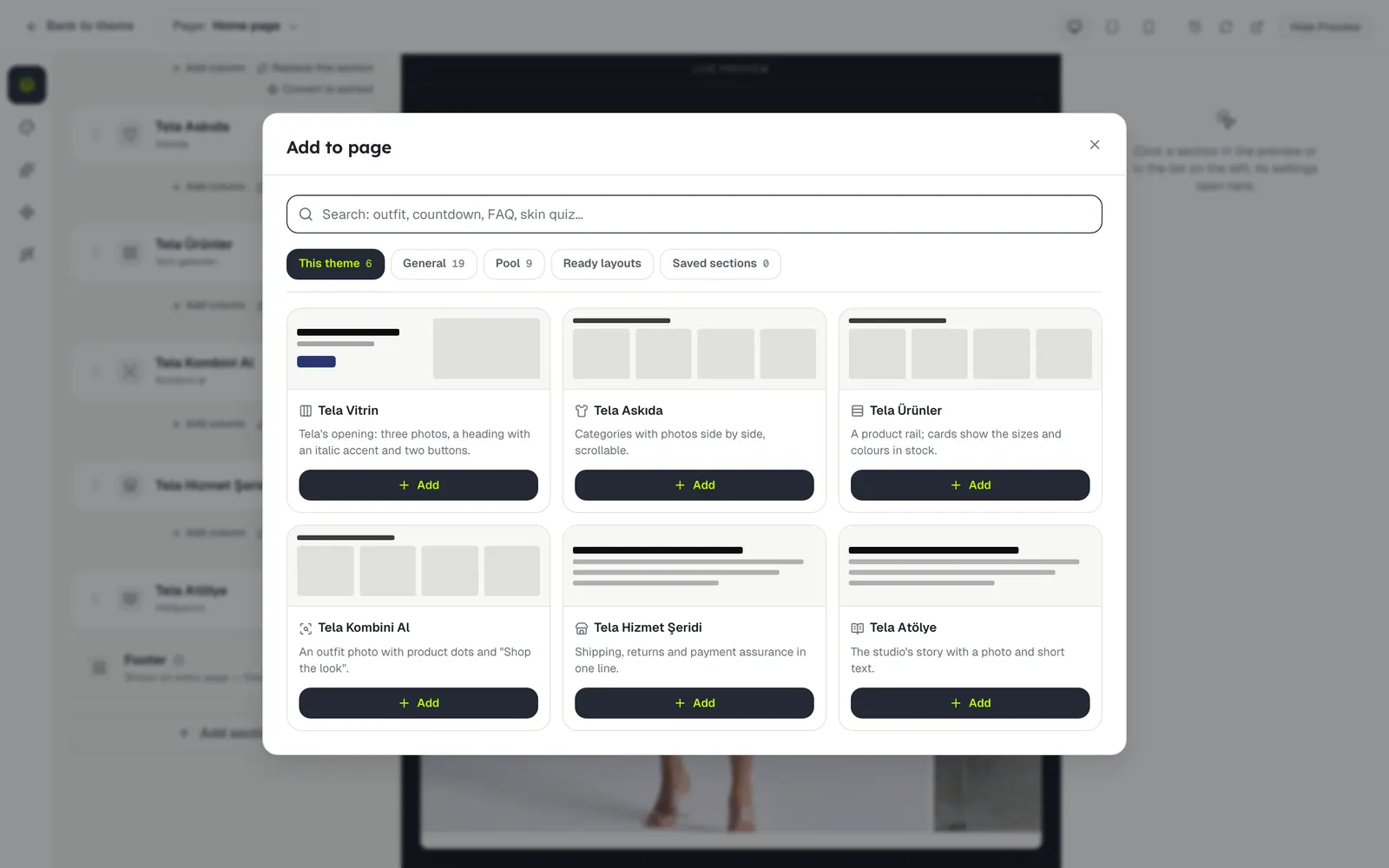
Press Add section under the section list, or hover a section on the preview and use the + Add section that appears between sections. The Add to page panel opens.
You can type what you are looking for in the box at the top ("FAQ", "countdown"…). The tabs:
- This theme: your theme’s own sections.
- General: sections that work the same in every theme (heading, text, image, FAQ…).
- Pool: other themes’ sections, adapted to your store’s colours and fonts.
- Ready layouts: ready-made compositions of several sections.
- Saved sections: the symbols you saved earlier.
Step 2
Change its settings
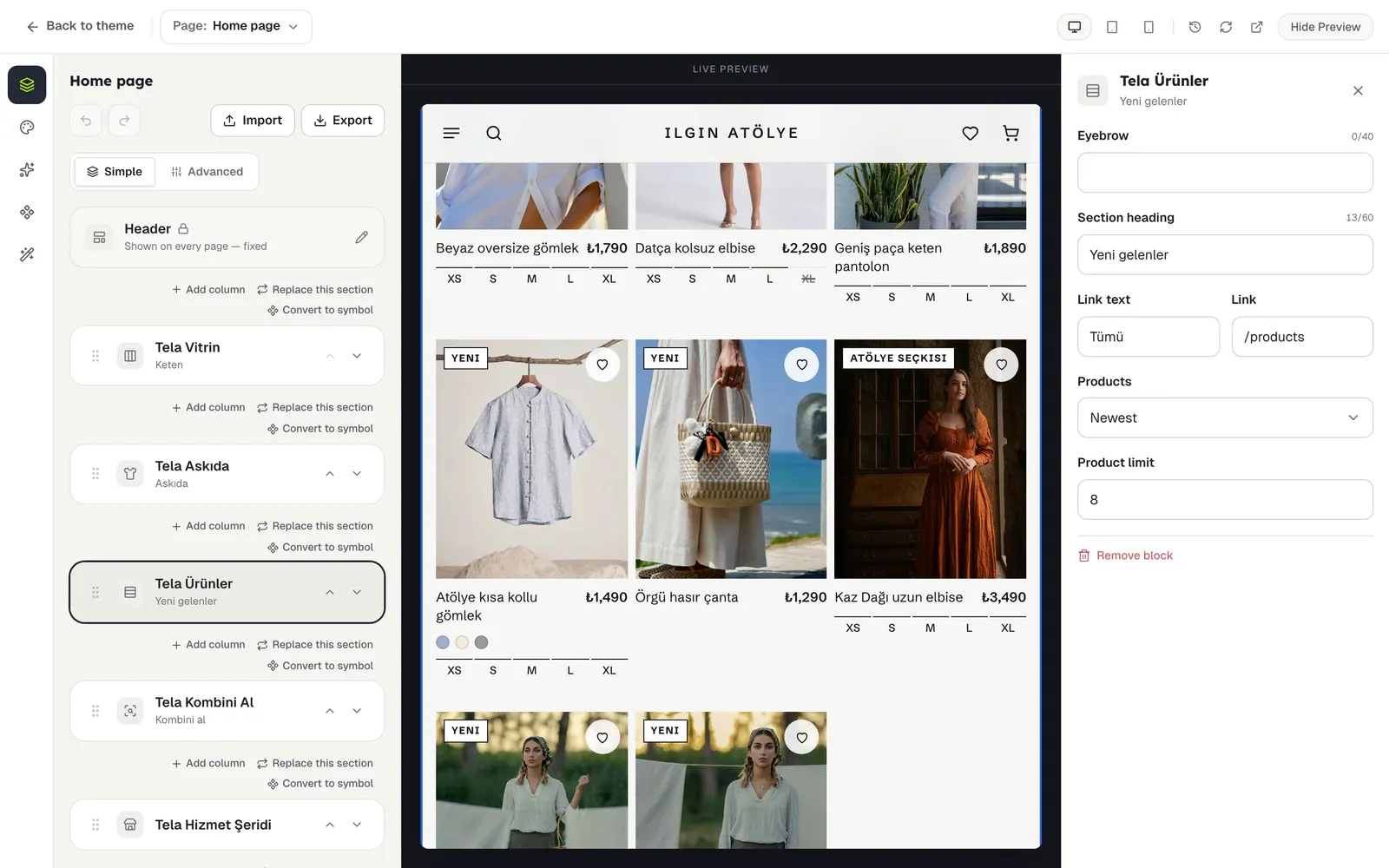
Click the section in the list or on the preview. Its settings open beside the preview on wide screens, or in place of the list on narrower ones; go back with ← Sections. A section you just added opens its settings by itself.
Step 3
Change text on the preview
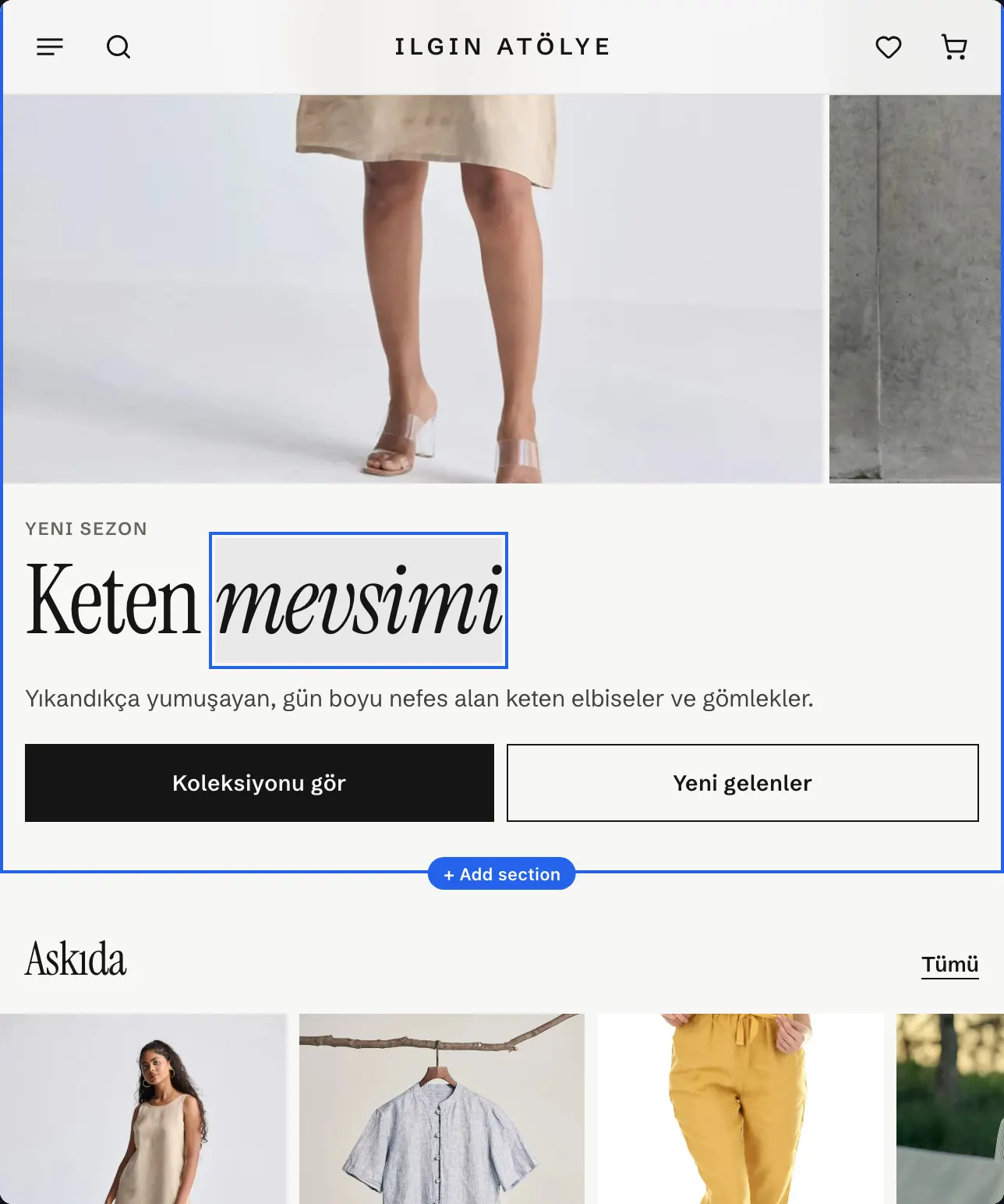
Double-click a heading or a text on the preview and type. Enter or a click elsewhere saves it; Esc cancels.
Step 4
Change the order
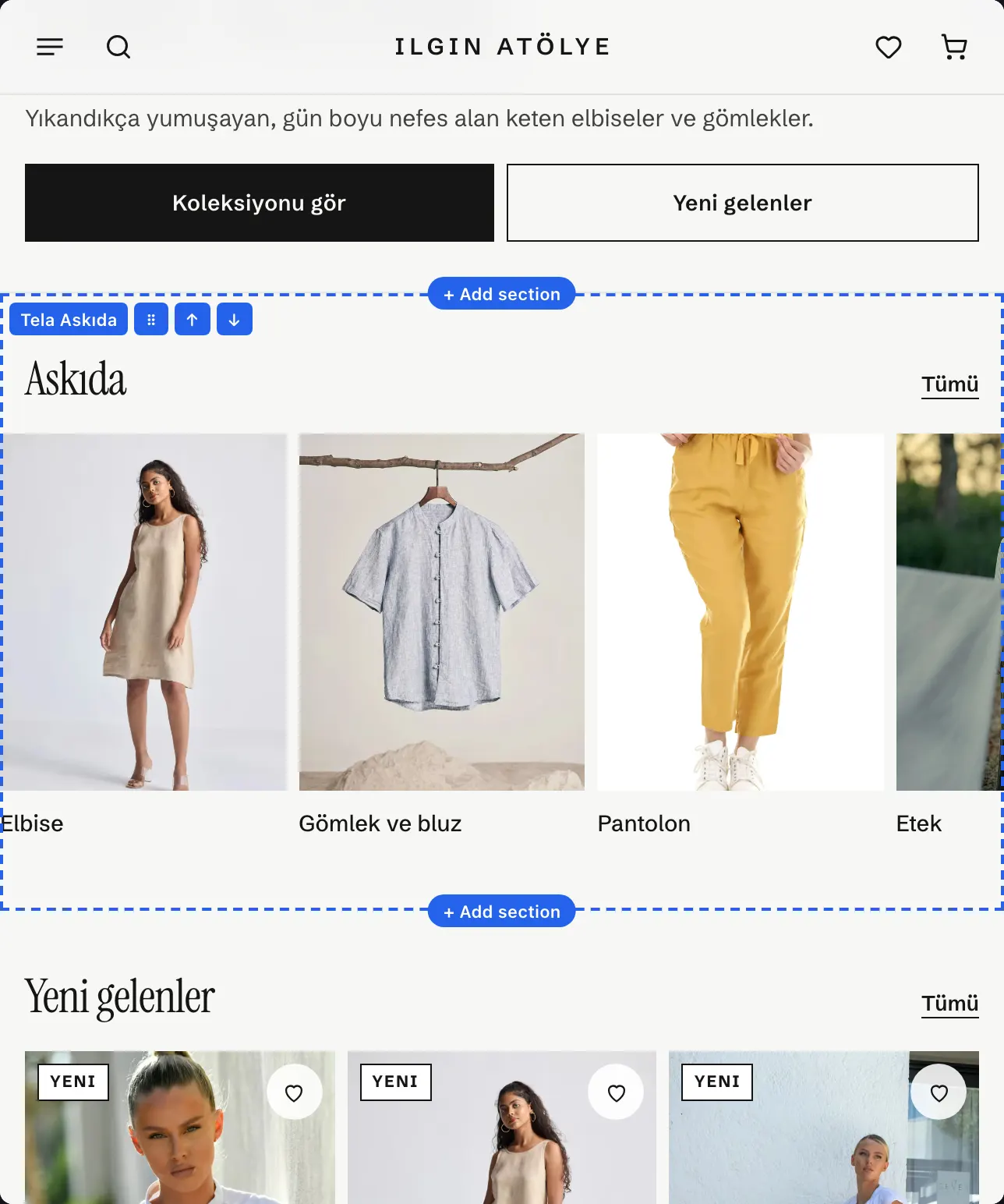
Hover a section on the preview to see its name and small buttons: drag it with ⠿ (the page scrolls by itself near the edge), or move it one place with ↑ ↓. The list has the same arrows.
Step 5
Remove, replace, save
Above a section’s row in the list there are three actions:
- Replace this section: puts another ready-made section in the same place.
- Add column: adds a column beside it (three side by side at most).
- Convert to symbol: saves the section so you can put it on other pages too. Change the symbol and every place it is used changes.
To delete a section, press Remove block at the bottom of its settings. A page holds up to 20 items; when it is full the Add button says Page is full (20 items).
Stuck somewhere?
Write to us