Step 1
Pick the page
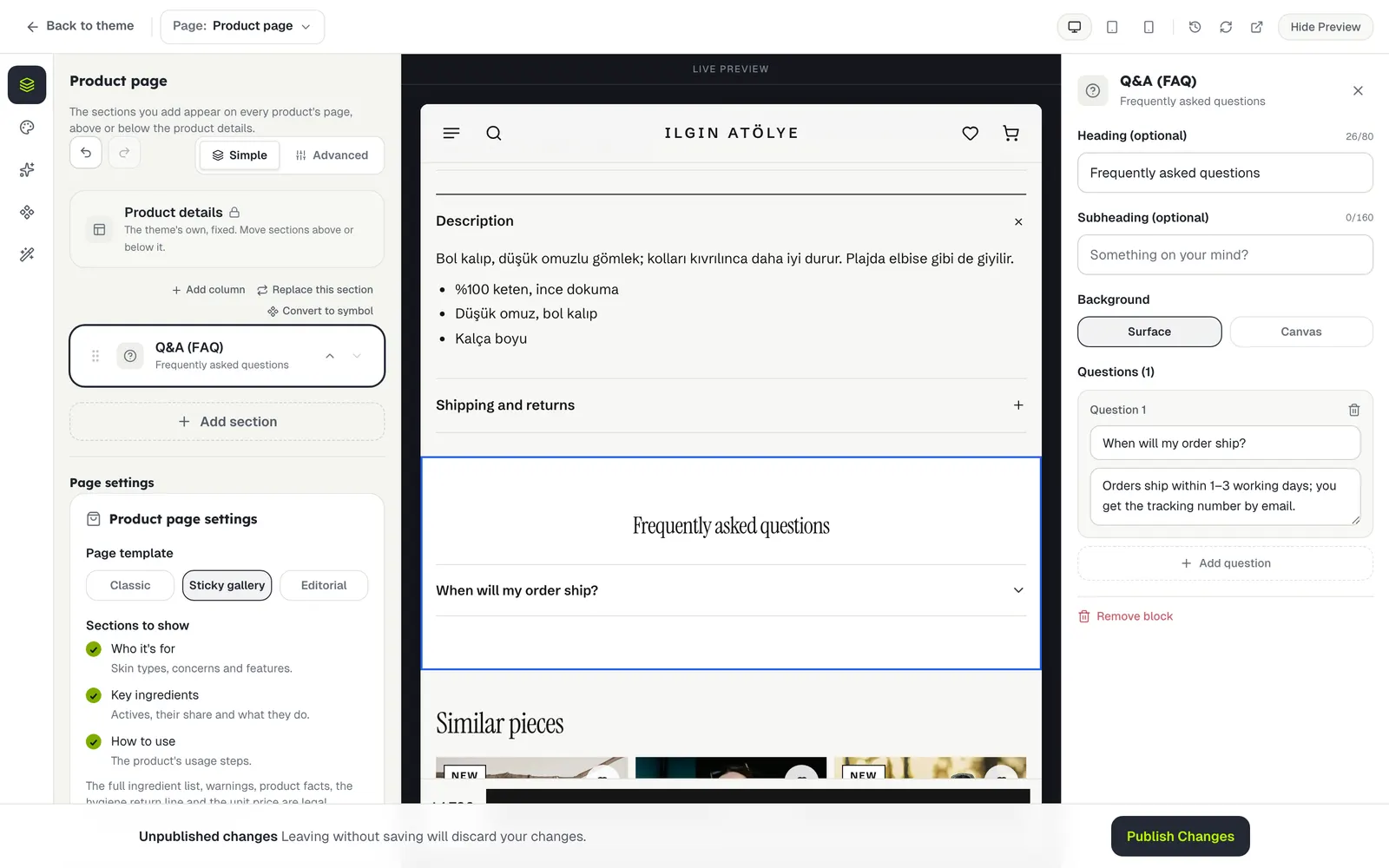
Choose Product page or Product list in the Page picker at the top. The page’s sections are listed on the left.
The locked row in the middle of the list is the theme’s own part: Product details (photos, price, add to cart) on the product page, Product list on the list. The sections you add sit above or below it.
Step 2
Add a section
On the preview there are + Add section buttons above and below the product, and Add section at the bottom of the list. For example, add Q&A (FAQ) from the General tab and write your questions.
Step 3
Move it above or below
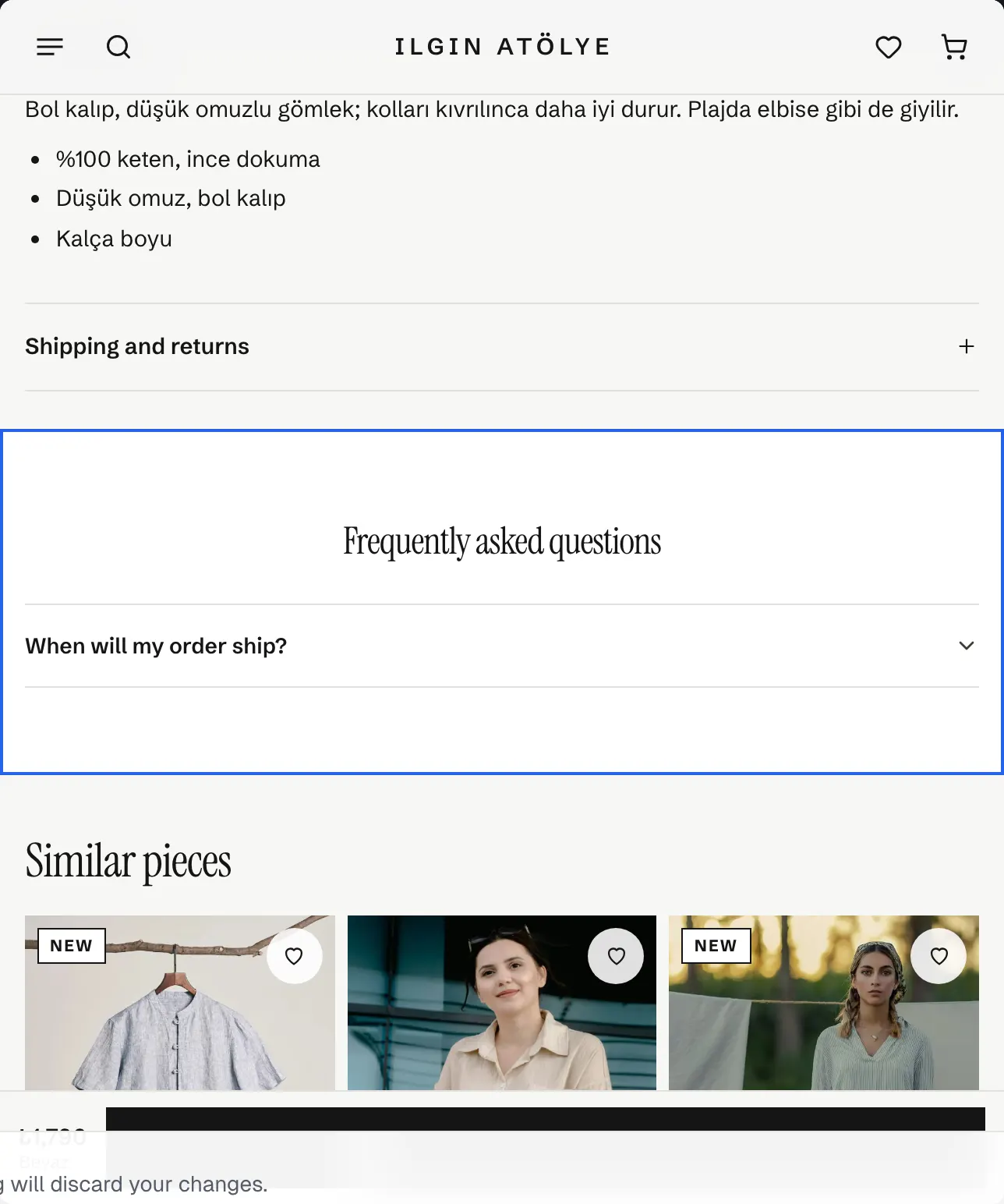
Move the section past the locked row with ↑ ↓ and it goes above (or below) the product. The preview shows it at once.
Step 4
Publish
Save with Publish Changes at the bottom. Sections you add to the product page appear on every product’s page; in the Tela and Duru themes they come right under the product details, before similar products.
Sections you add to the product list appear on the all-products page. Category pages keep their own sections in Categories, under Page content in a category’s menu.
The page’s own settings (template, sections to show) are under the section list, below Page settings.
Stuck somewhere?
Write to us