Step 1
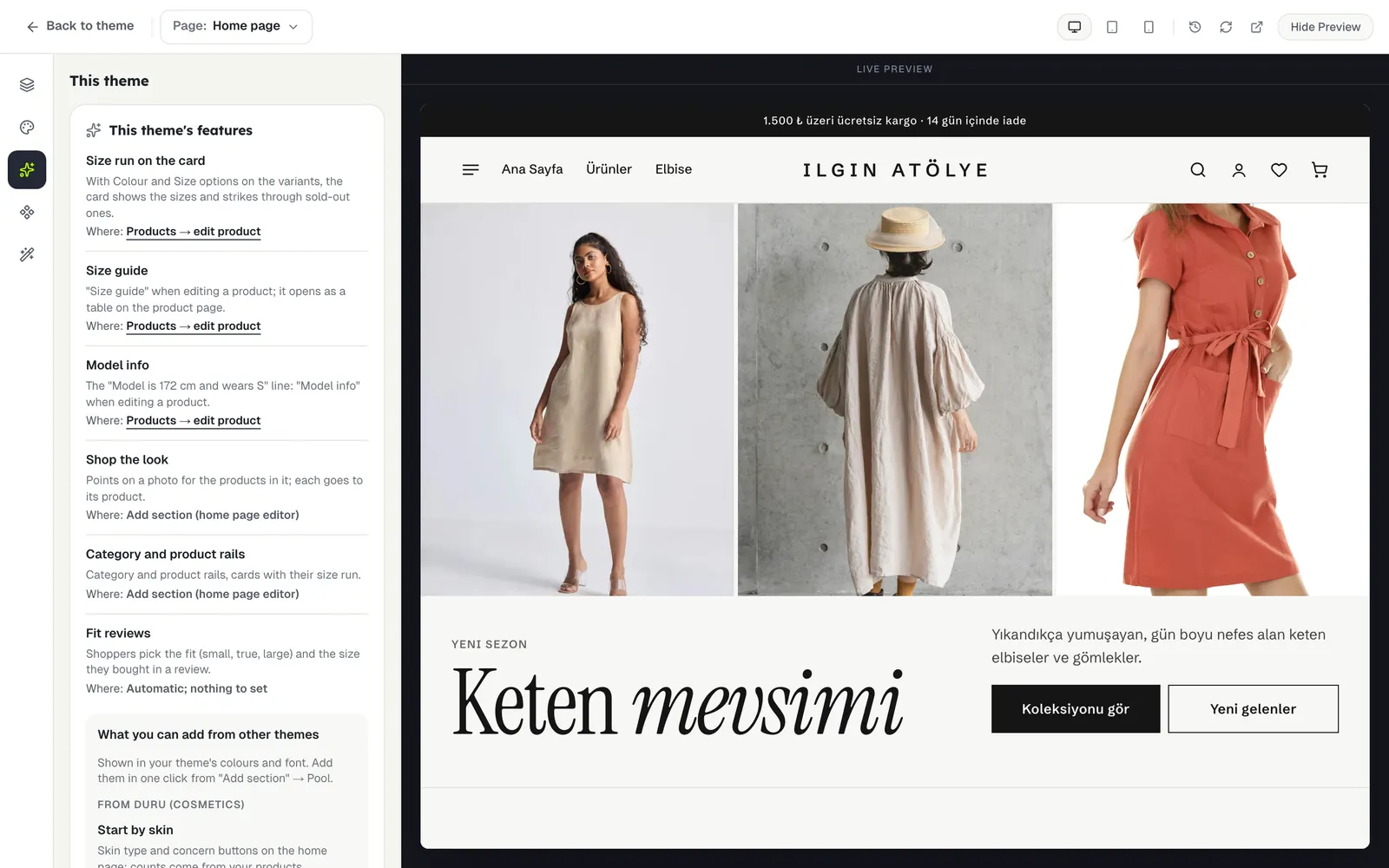
See what your theme brings
Press This theme in the strip on the left. You see your theme’s features and where each one is edited. Below, What you can add from other themes is listed.
Step 2
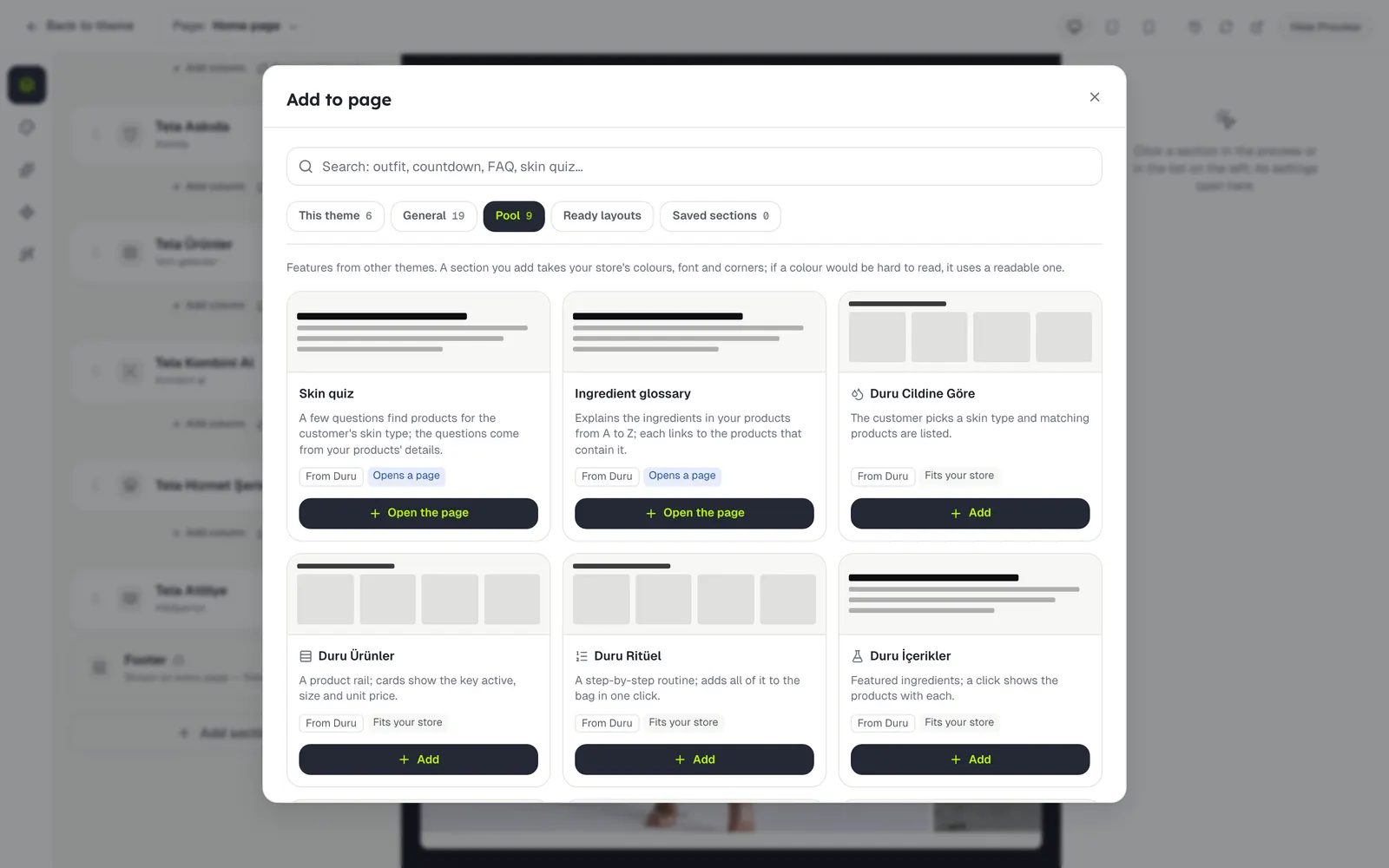
Add a section from the pool
Open Add section → Pool. The "From Duru" or "From Tela" label on a card shows where the section comes from. Press Add and the section takes your store’s colours, font and corners.
Step 3
Open theme pages
Next to the sections, the pool also has whole pages, such as the Duru theme’s Skin quiz and Ingredient glossary. Press Open the page and the page goes live in your store; to add it to the menu, go to Navigation.
You can change an opened page’s title and intro, or close it, in the Theme pages box of the This theme pane.
Stuck somewhere?
Write to us