Step 1
Switch to advanced mode
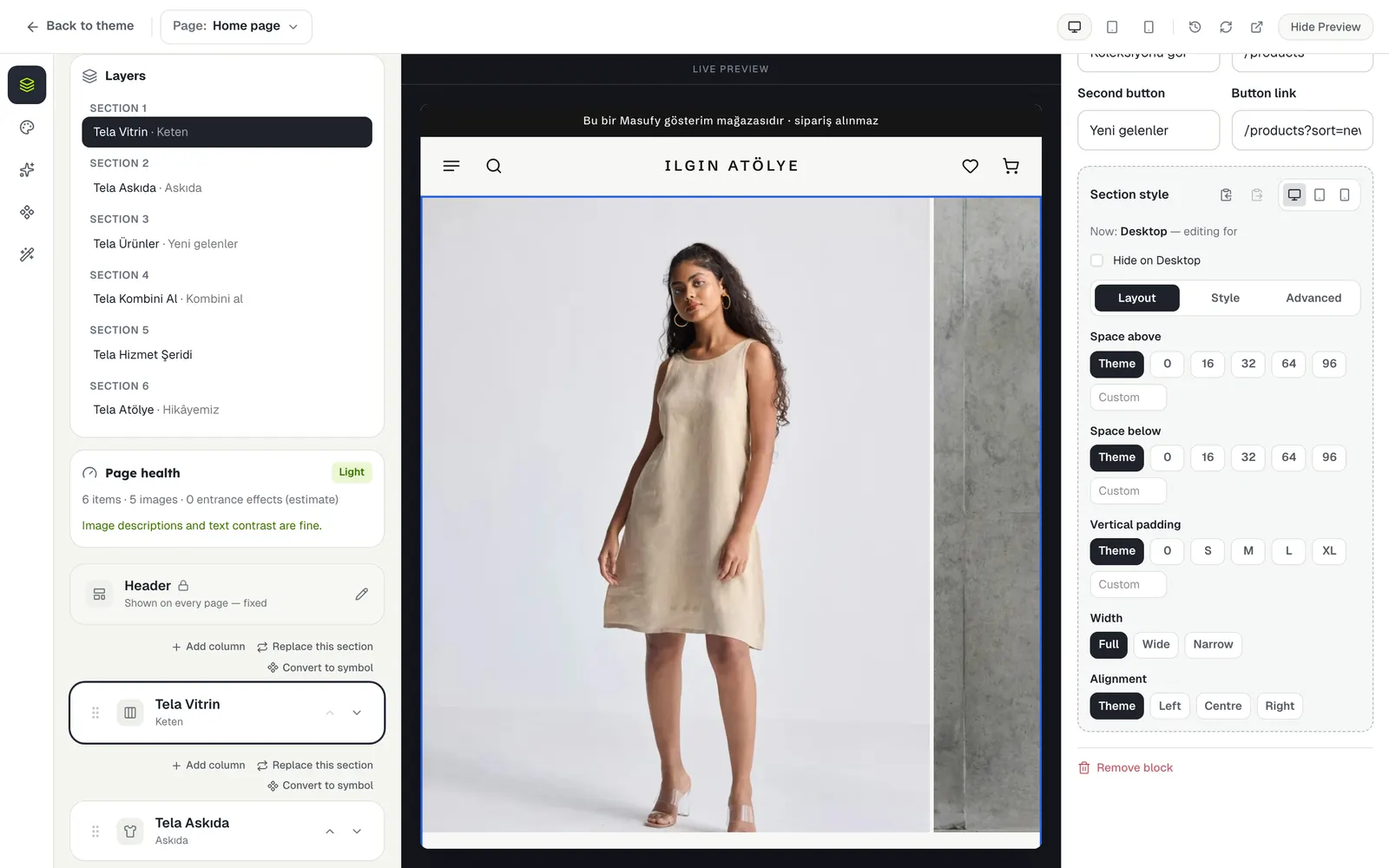
Choose Advanced in the Simple / Advanced switch above the section list. Click a section and Section style opens under its settings. On a phone the editor works in simple mode only.
Step 2
Set the style
Section style has three tabs:
- Layout: top and bottom spacing, width, alignment.
- Style: text colour, background colour or image, border, corners, shadow.
- Advanced: entrance effect, anchor name (to link to this section from the menu), CSS class, CSS for this section.
Values come from the theme’s scale first; use Custom for anything else. The colour list is your store’s own colours.
Step 3
Set values per device
With the device buttons at the top of the section style you can give desktop, tablet and phone their own values (less spacing on phones, for example). The same place lets you hide the section on a device.
Step 4
Copy a style
Take a section’s style with Copy style, select another section and press Paste style.
Step 5
Layers and page health
Layers shows the page’s skeleton: section, column and item; hidden and styled items are marked. Click one to select it.
Page health counts the items, images and effects on the page and tells you whether it is light or heavy; it also lists images without a description and text that is hard to read.
The first section of a page never plays an entrance effect, so the opening image appears without waiting.
Stuck somewhere?
Write to us