Step 1
Open the editor
In the panel, open Theme from the menu on the left and press Customize. Your changes stay invisible to customers until you publish them.
Step 2
Get to know the screen
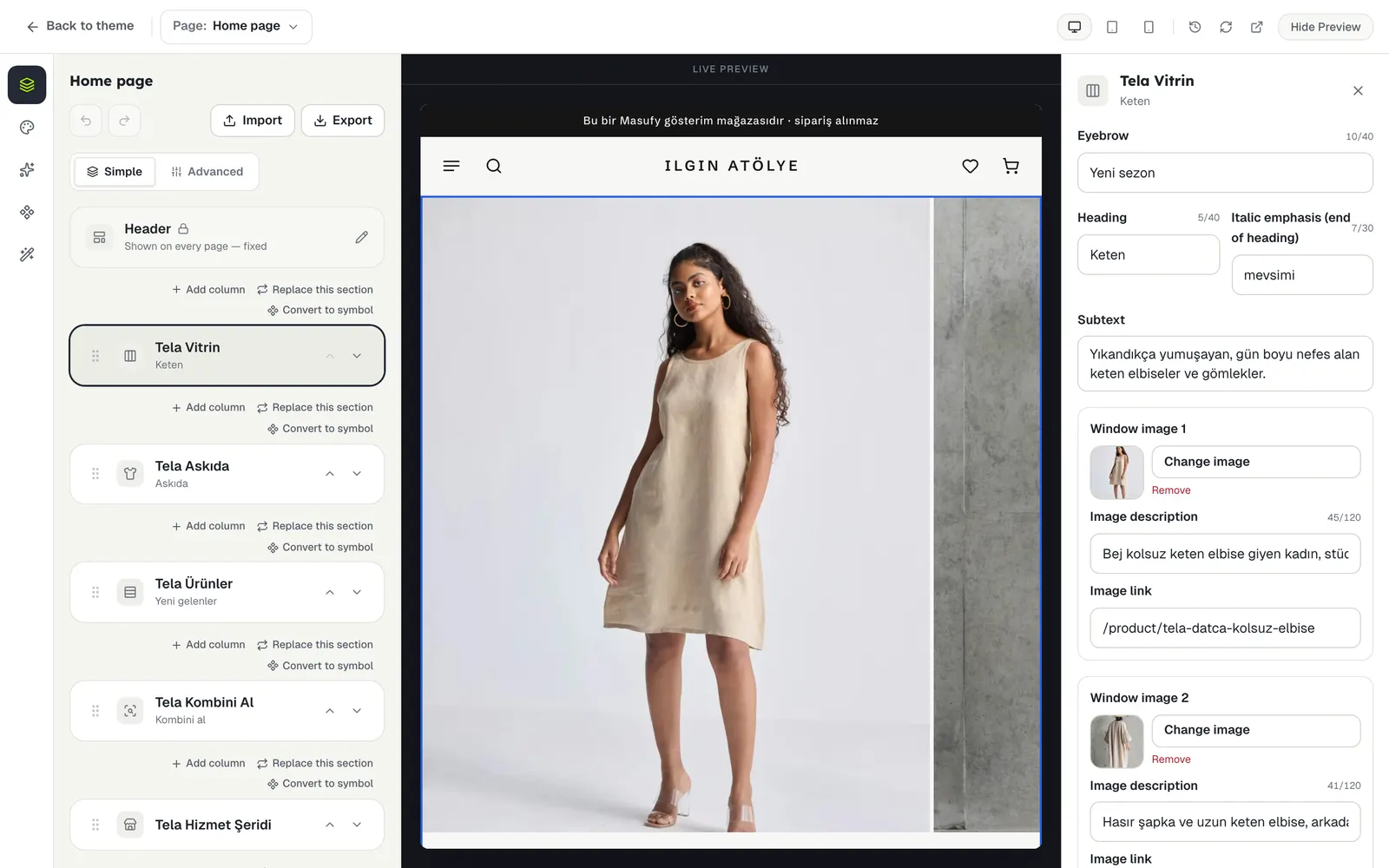
The editor has four parts:
- At the top, the Page picker: the page you are editing.
- On the left, a strip of icons: Page, Theme settings, This theme, Symbols and AI Create.
- In the middle, the live preview: your store with your changes.
- On wide screens, the selected section’s settings on the right.
Step 3
Move between pages
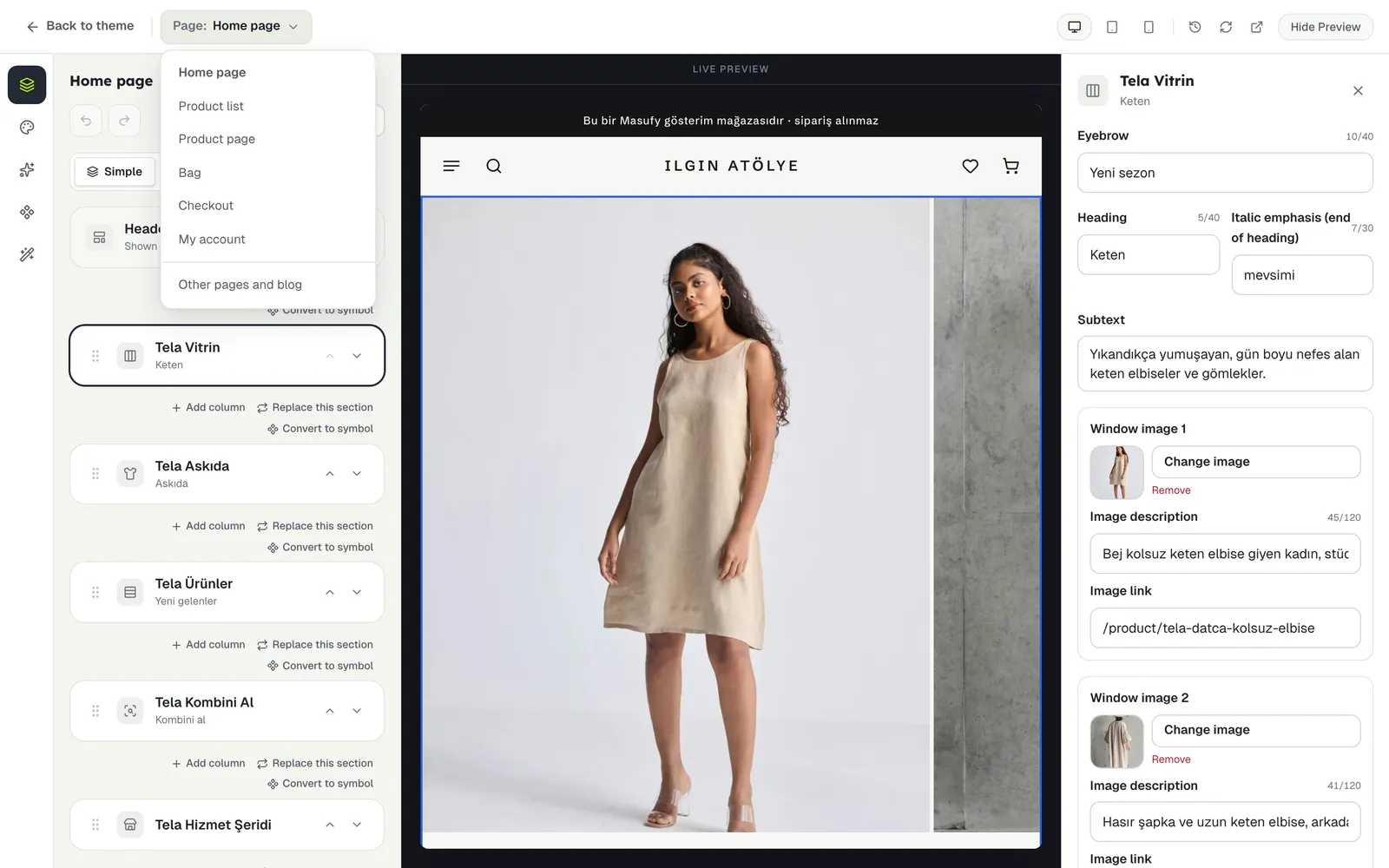
Use the Page picker at the top to switch between Home page, Product list, Product page, Bag, Checkout and My account. The preview follows; the product page is shown with your store’s first active product.
For pages you created yourself and for the blog, use Other pages and blog at the bottom of the list.
Step 4
Use the preview
The Desktop, Tablet and Mobile buttons at the top right change the preview’s width. Refresh reloads it, Open Store opens your store in a new tab and Hide Preview gives the editing area more room.
Step 5
Publish or undo
When you change something, a Publish Changes bar appears at the bottom. Press it and the changes go live.
The arrows above the section list undo and redo your last steps (Ctrl+Z works too). The clock icon at the top right opens Version history: you can take the home page and the theme settings back to an earlier version.
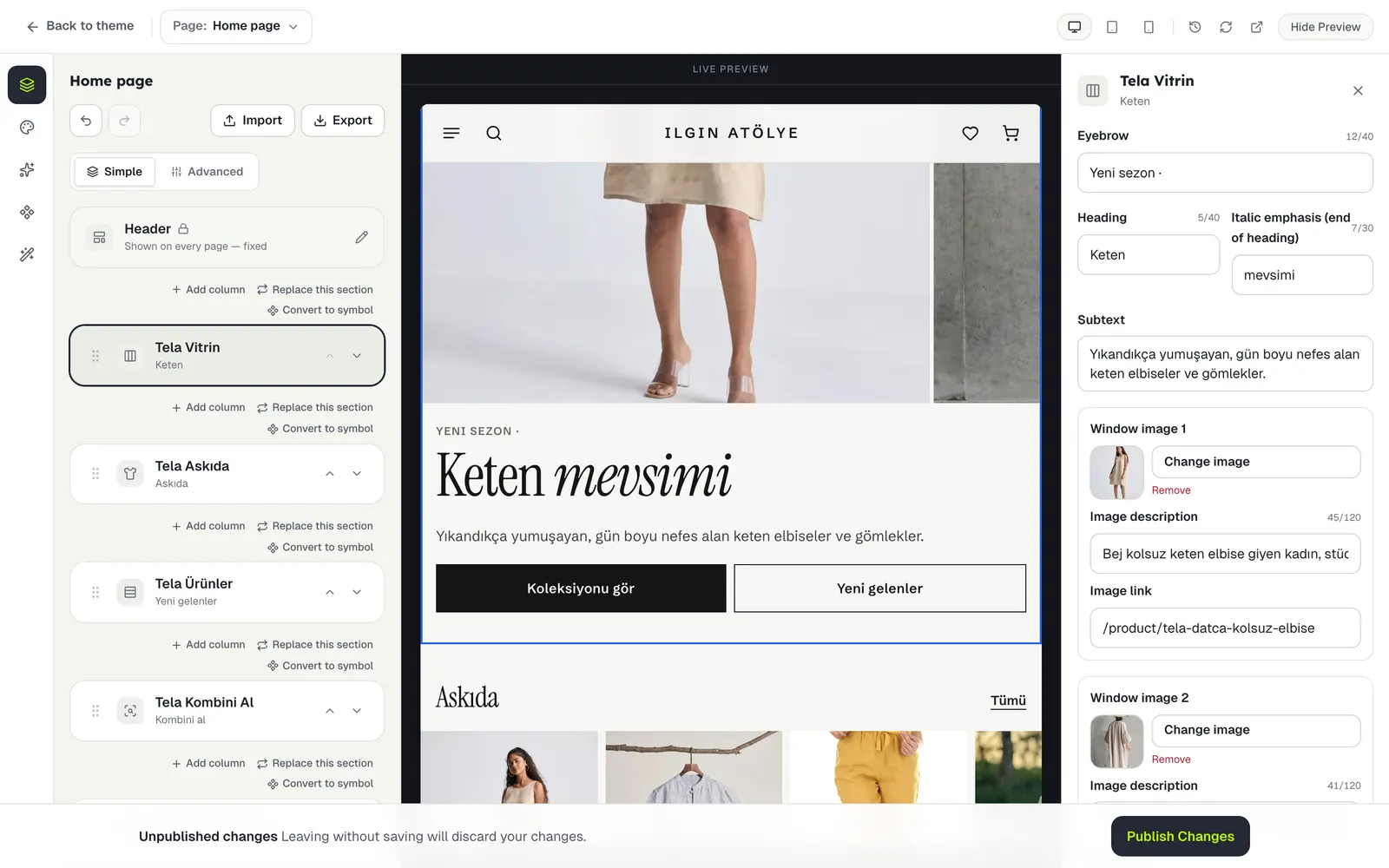
If you close the page without publishing, the editor offers to pick up where you left off when you come back.
Stuck somewhere?
Write to us