Step 1
Open the theme settings
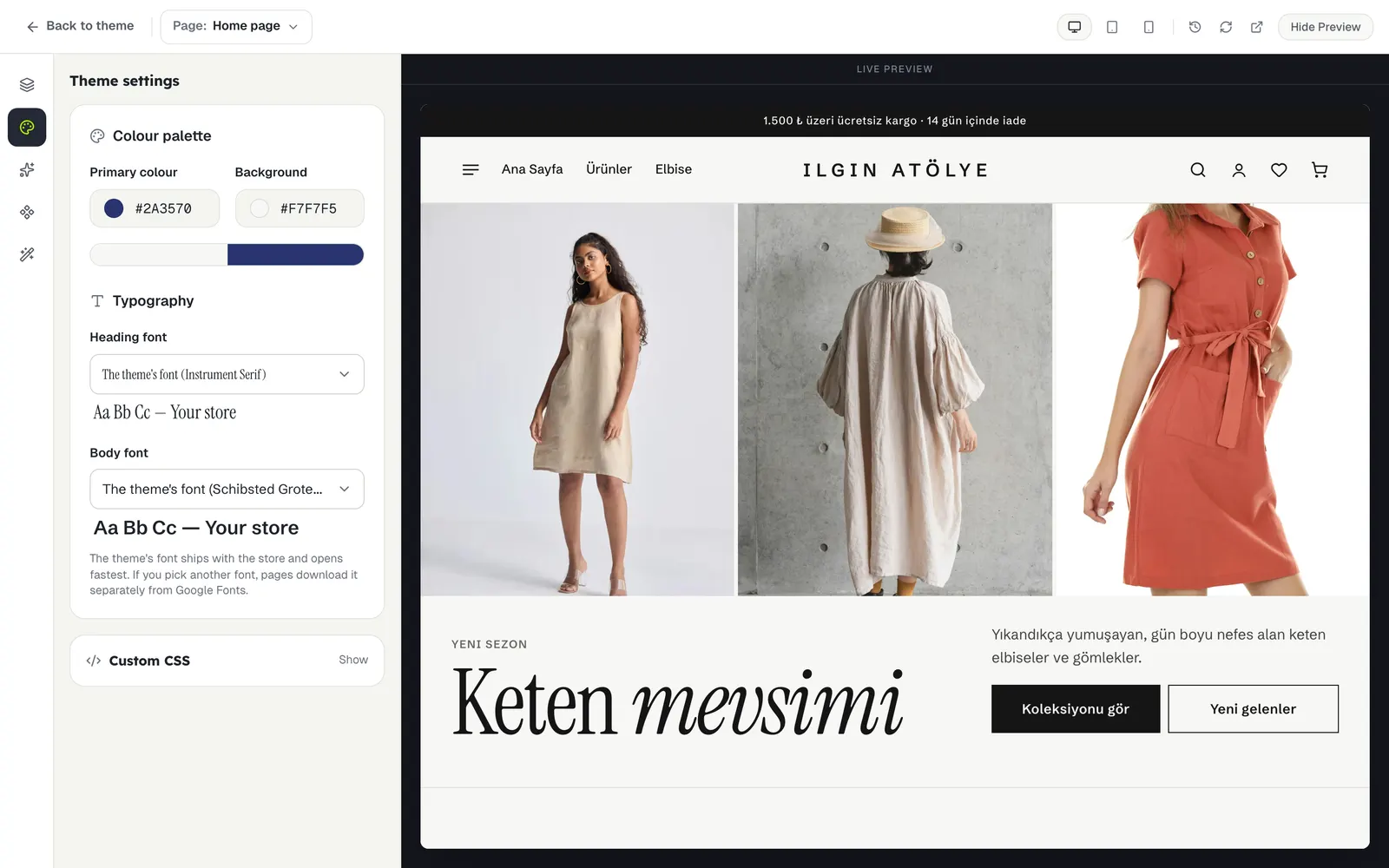
Press Theme settings in the strip on the left. Your store’s colours and fonts are here; every change shows on the preview at once.
Step 2
Choose colours
Click a field such as the main colour, the background or the text colour and pick a new colour. Only the colours your theme actually uses are shown.
Sections you add from other themes take these colours too. If your accent colour is too close to the background to read, those sections switch to your text colour by themselves.
Step 3
Choose a font
The first option is The theme’s font: it ships with your store and loads fastest. If you pick another font, your pages load it from Google Fonts.
Step 4
Custom CSS (optional)
Code you write in Custom CSS at the bottom of the theme settings is added to every page of your store. It saves when you leave the field and the preview reloads. For safety, @import, javascript: and similar expressions are removed; 50,000 characters at most.
To change how one section looks, use the style settings in advanced mode instead of CSS.
Stuck somewhere?
Write to us