Step 1
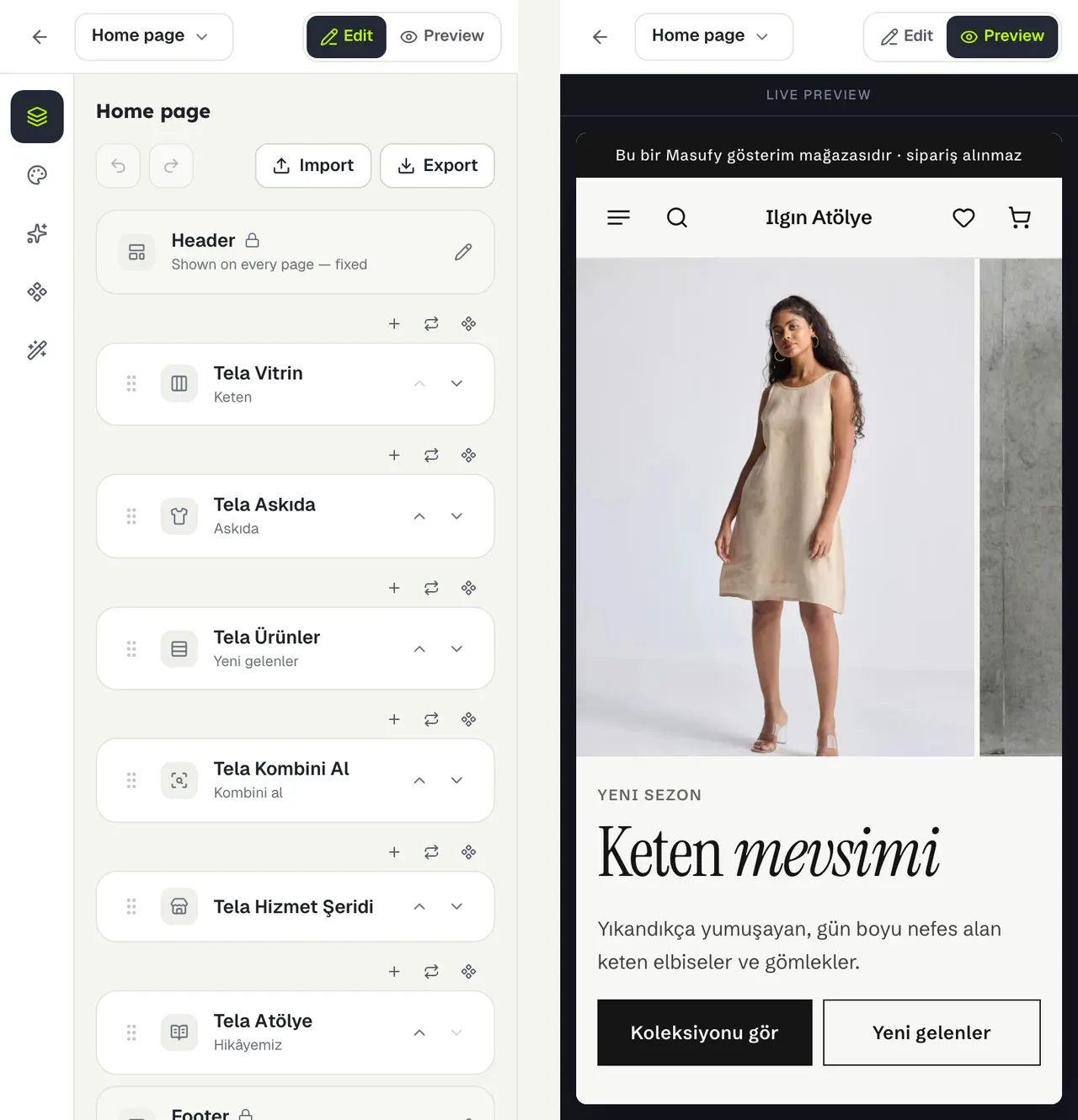
Edit and Preview
On a phone the editor and the preview take turns on the full screen. Switch between them with Edit and Preview at the top.
Step 2
Change a section
Tap a section in the list; its settings open in place of the list. When you are done, go back with ← Sections. The actions above a section’s row are icons on a phone.
Step 3
Publish
When you change something, the Publish Changes bar appears at the bottom. On a phone the editor is in simple mode; use a computer for the advanced style settings.
Stuck somewhere?
Write to us